Log in to the Tucker Website – Navigate to IGO Section
Step 1: Log in to the Tucker Website – Navigate to IGO Section Then Click “Go Now
Step 3: Click Start “New Case”
Step 4: Fill in Necessary Info
Step 5: Select Carrier and Product
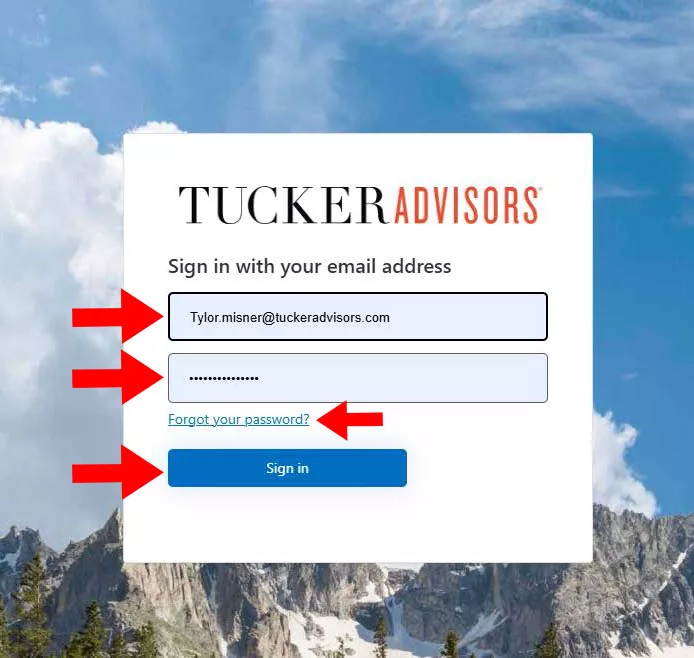
Step 1: Login to Tucker Website
Login Screen:
Use your personal Tucker Advisor login
and proceed to the next step.
Tip: If you have troubles use the forgot
password button above “sign in”

Step 2: Click “Go Now”
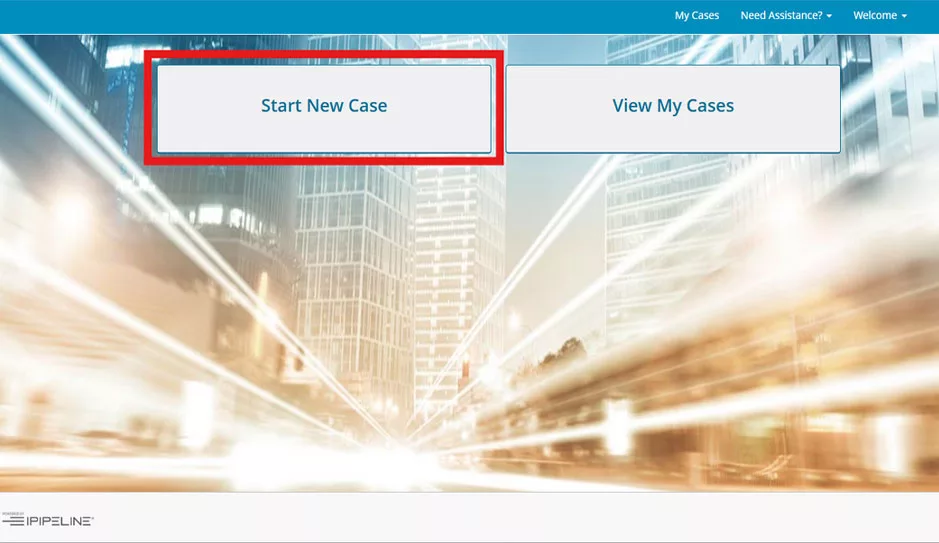
Step 3: Click Start “New Case”
Please Click Start New Case to start a new application
(If you are trying to access an app already started please see
HOW TO EDIT AN E-APP IN PROGESS)
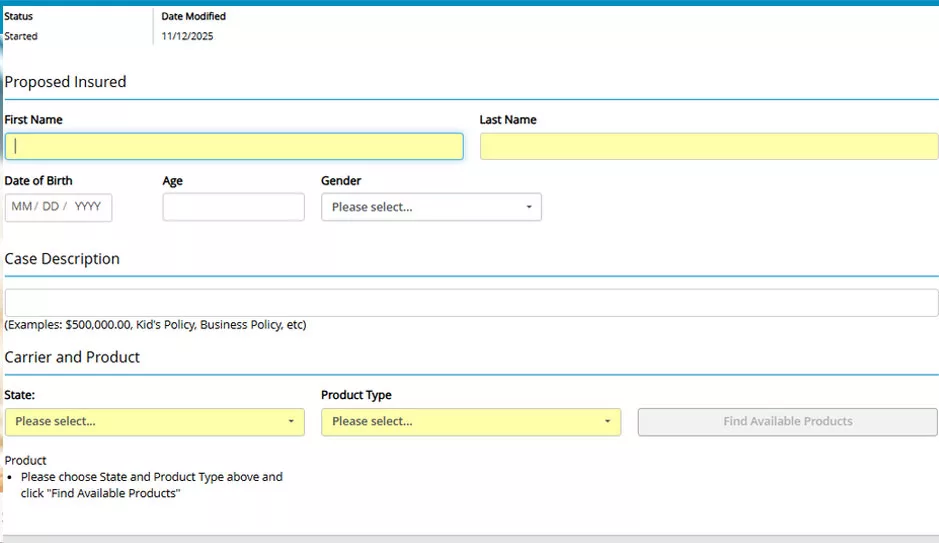
Step 4: Fill in Necessary Info
Fill out all Sections and Select Find Available Products.
(Please Note this system will allow you to start applications you may not be appointed to sell, please check with Contracting or your Life Sales VP for verification)
Case Description:
This is for you to remember what case or application in case you need to review or finish at a later time
Product Type:
Type of policy you are wanting to start an application for. if you are doing multiple applications with the same carrier it will ask you that information in the app of the carrier you choose.
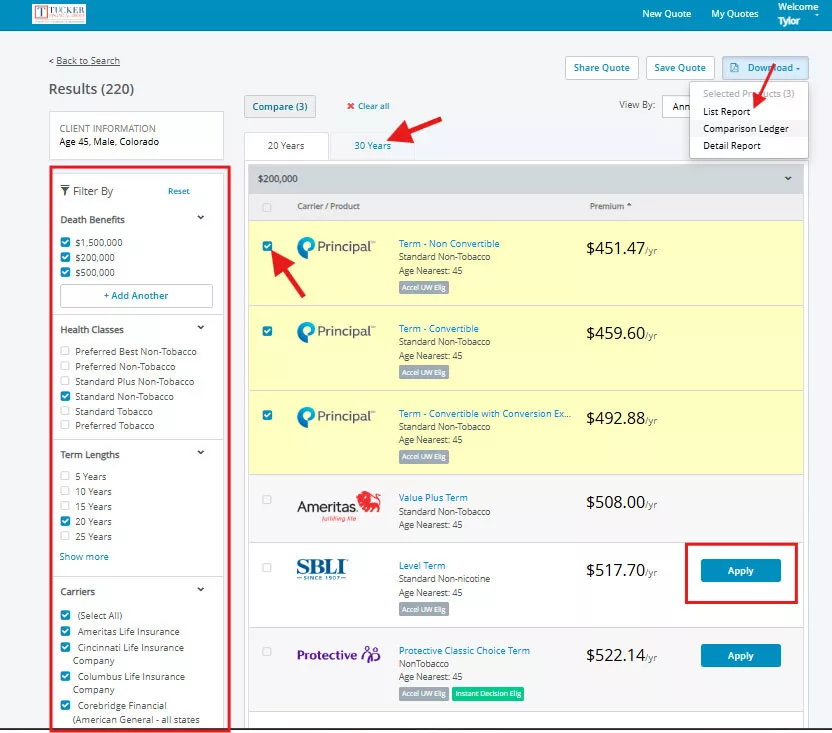
Step 5: Select Carrier and Product
(Please check illustration if provided by the Life team for correct Product)
Select Carrier and Product
Please Check to ensure the Product Select is correct, if not selected properly you will need to restart and input the case again.
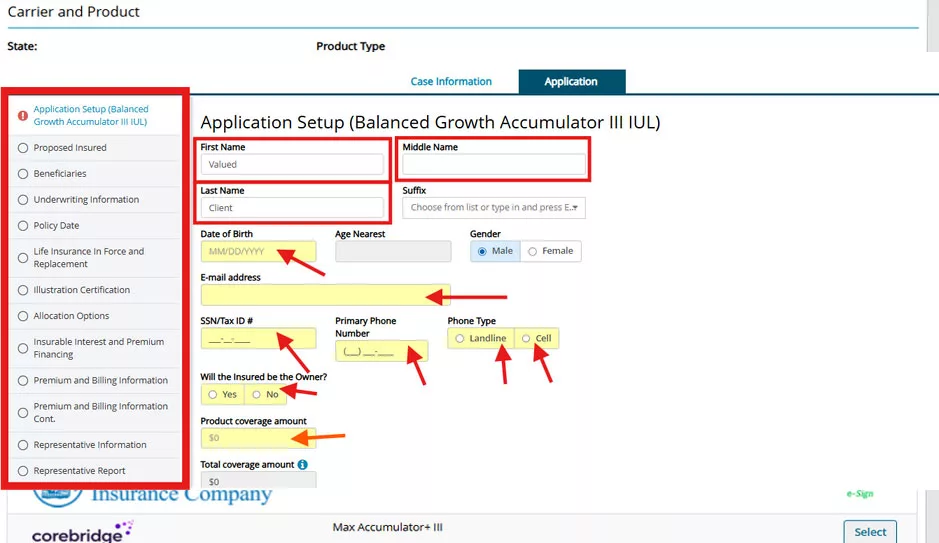
Step 6: Fill Out All Sections The left Hand Side.
Fill out information in each section on the left hand side. if any section has a red !, the section has incomplete information. any sections highlighted in YELLOW are required to be completed.
(If any of this looks different on your screen, each carrier makes their application in IGO slightly different. if you have any questions, please try to compete the rest of the application information and then call your Life team for assistance.)
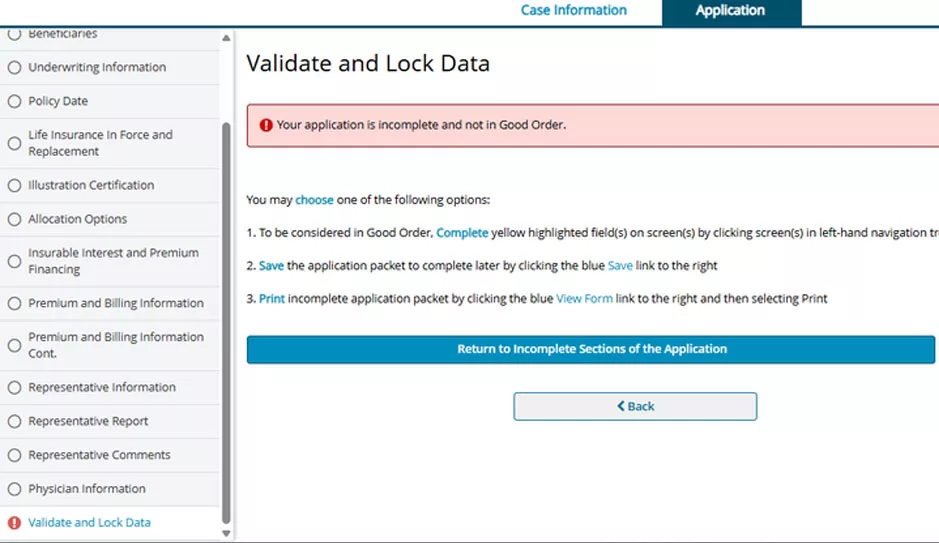
Step 7: Lock and send application for Signatures
If carrier requires a client or agent PIN, please use last 4 of the respective persons SSN.
Once you have completed the application to a sufficient point, the application will allow you toLOCK and SIGN. if you see a similar screen with an Error, you have not completed the required information.
Some carriers applications ask you to assign a PIN to the client and/or agent for added security with E-signatures.
TOOLS
HOW TO SAVE/VIEW INPUTS ON CARRIER FORMS/START NEW CASE

Save Button – Top of Screen Next to “CaseActions”
View Forms – This will allow you to see how the information you input is being put on the carrier official application paperwork.
DO NOT PRINT AND SIGN THESE FORMS