

life insurance resources
Tools and Resources for your success
Log into the user portal to access our full library of
resources in the learning center
Monthly Client Facing Emails.



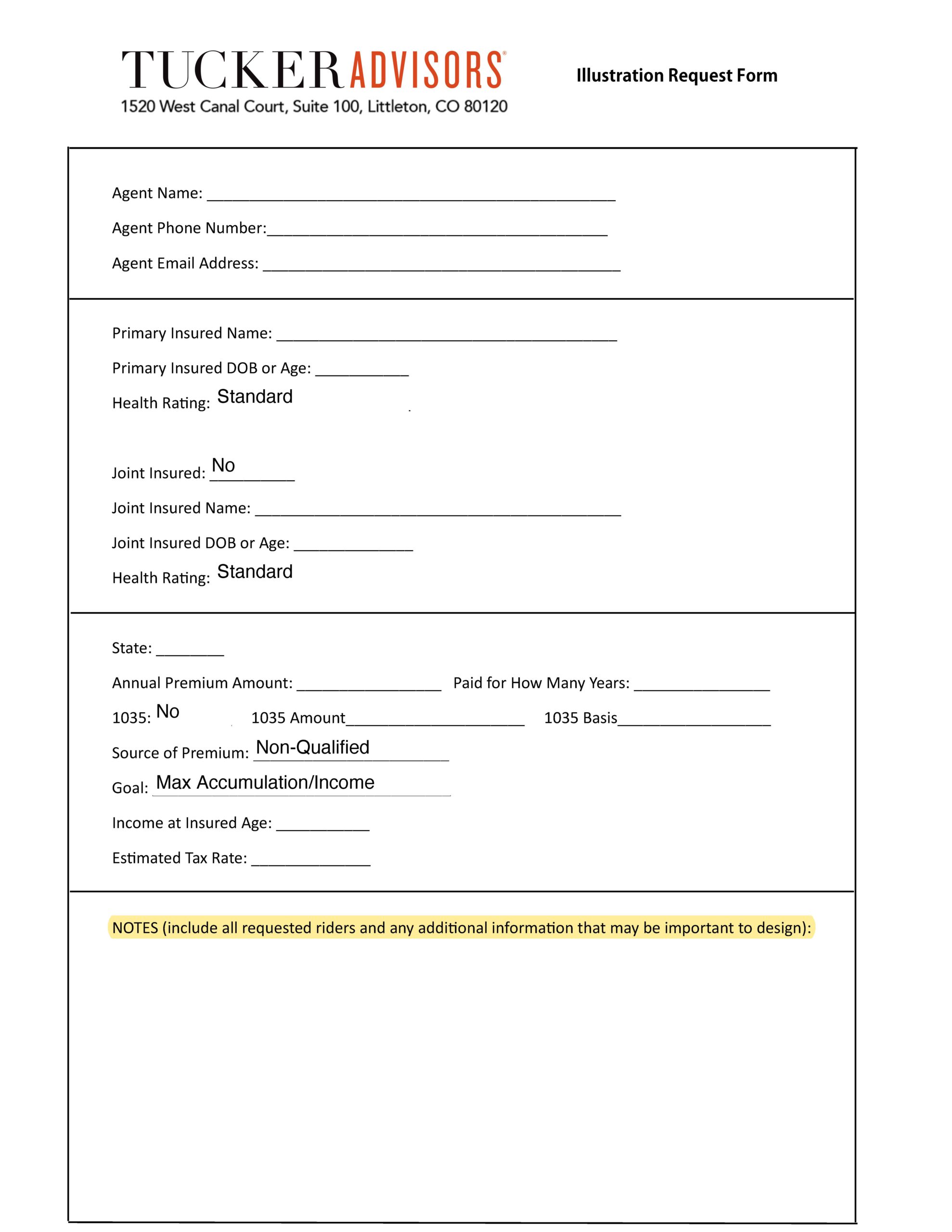
This tutorial is to show use how to use the Illustration Tool from the Tucker Website. Please follow through each step depending on which use of IGO Tool youn are needing.
Running a Term/GUL Quote using our own reporting software:
Step 1: Log in to the Tucker Website – Navigate to IGO Section (Link Here) Then Click “Go Now
Step 2: Click “GET QUOTES HERE”
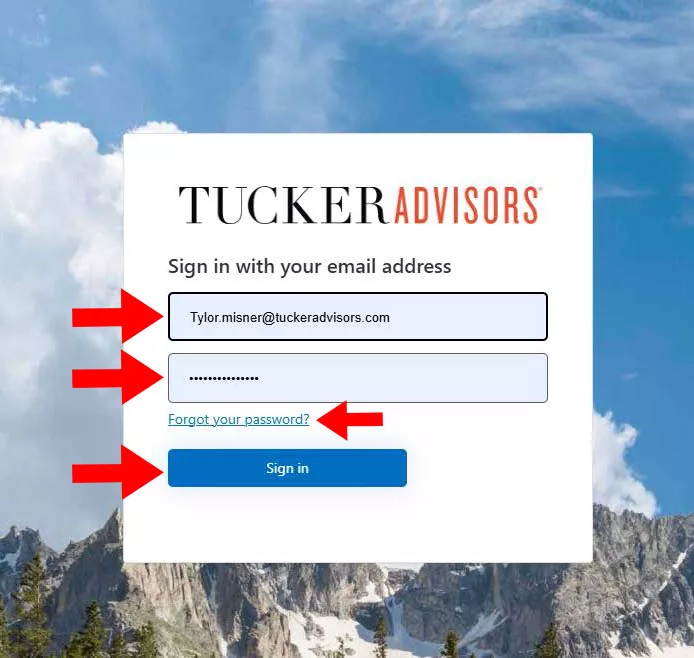
Step 1: Login to Tucker Website
Login Screen:
Use your personal Tucker Advisor login
and proceed to the next step.
Tip: If you have troubles use the forgot
password button above “sign in”

Step 2: Click “GET QOUTES HERE”
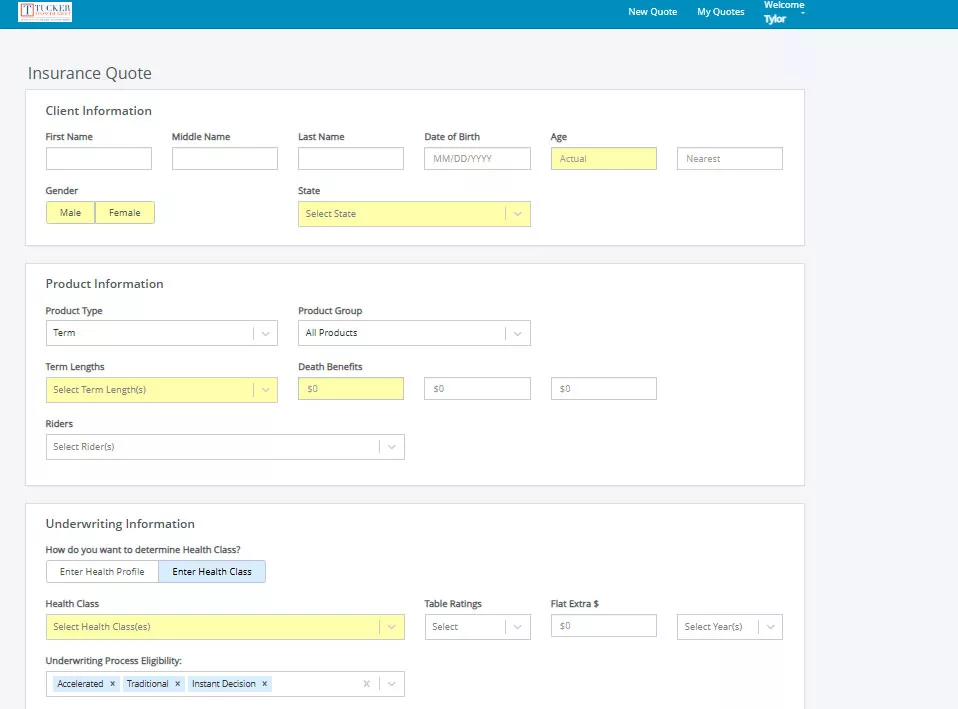
Step 3: Fill in Necessary information
Fill in Necessary information.
Information in YELLOW is required to advance to the next screen.
Tip: it is always best to run illustrations at standard for quoting purposes, you will notice there is quite a difference between standard and preferred. always under promise and over deliver!
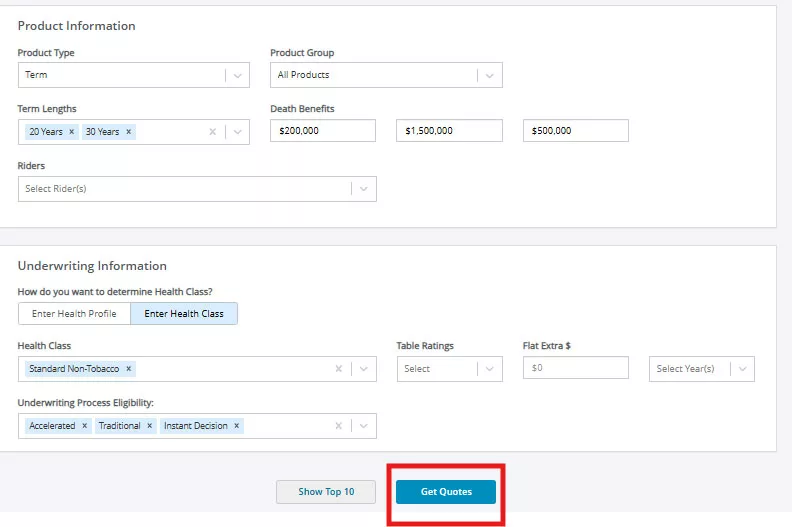
Step 4: Click “GET QUOTES”
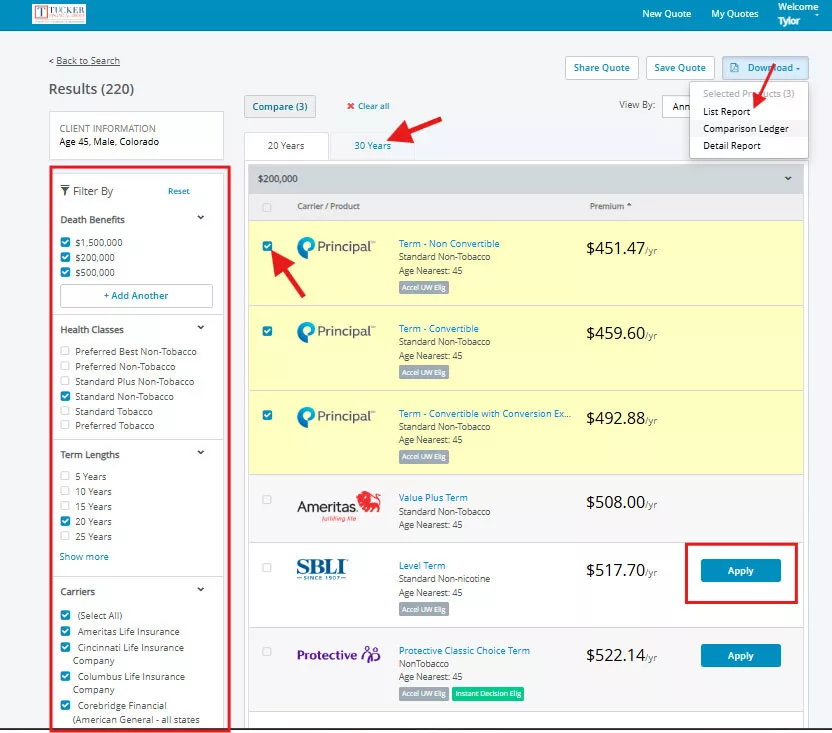
Step 5: Select Carriers and Download Report
Select Carrier and download the “list report” you may play around with other download options, but we find that the list report lays out all carriers and options selected in one place.
Use the Tab at the top to switch between how many years or maturity age depending on product being ran.
You may also change any parameters on the left-hand side.
Some carriers also allow you to start the E-app directly from the quoting system to bypass starting an E-app from scratch using the
IGO E-APP MANUAL.
TIPS
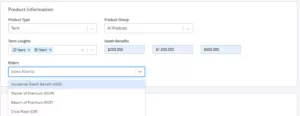
Riders can be selected below in production information.
New Quote can be started with the button at the top.
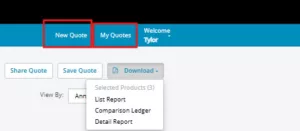
Previsouly ran qoutes will be stores under the “My Quotes” Button.